
Zivio + your AI assistant
Run services procurement from the AI assistant you already use
Connect Claude, ChatGPT or Copilot to your Zivio account with your own login. Ask what needs your attention, see where the money went and approve work, with the same permissions and audit trail as the web app.
Join the change-makers delivering smart services procurement
How it works
Connect: Log in to Zivio from your assistant and choose Read only or Full access.
Ask: Your assistant can read everything you can see in Zivio: projects, proposals, evaluations, supplier questions, invoices, milestones and spend.
Act: Where you have permission, it can approve, shortlist, answer and submit. It checks with you before every change.

Follow Alex Morgan, Head of Commercial at a council, through a Monday morning in five short videos.
The council and suppliers are fictional.See it in action

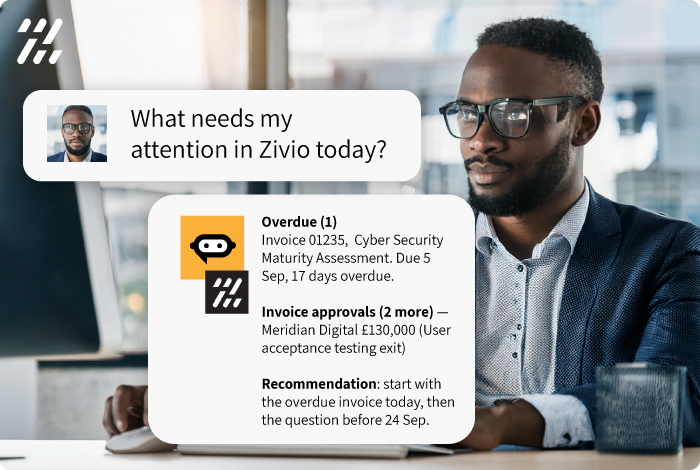
What needs my attention?
You only open a procurement system because something is waiting on you. So skip that step and ask.
Try asking:
“Good morning. What needs my attention in Zivio today? Group it by the kind of action needed and flag anything overdue.”
The assistant pulls Alex’s own queue and groups it into overdue invoices, invoice approvals, supplier questions and supplier reviews, complete with supplier names and amounts. Then it suggests what to tackle first.
What did we spend, with whom, and who paid?
The question that usually turns into a spreadsheet and a two-day wait for Finance.
Try asking:
“How much have we paid each supplier over the last 12 months, and how does that spend split across departments and cost centres?”
In seconds, Alex sees £466,000 paid across 17 invoices, broken down by supplier, department and cost centre. The totals are calculated inside Zivio, so they’re exact and only include what Alex is allowed to see.
Write me the Monday status report
The report your PMO spends Friday afternoon putting together.
Try asking:
“Give me a one-page status report on my live projects: stage, supplier, budget, how much has been invoiced and paid so far, and any milestones that are overdue or due this week.”
Every live project on one page, with late milestones and invoices waiting for approval flagged. A follow-up asks the assistant to draft a chaser email to a supplier about a late milestone, written from what it has just read.
Run the competition: compare, answer, shortlist
Three proposals, a weighted scorecard and a supplier waiting on an answer. Run the whole evaluation from one conversation.
Try asking:
“For the Digital Workplace Transformation project, compare the proposals against the budget and the evaluation criteria, tell me which supplier questions are still unanswered, and recommend who to shortlist.”
The assistant compares three proposals against a £320,000 budget and a 70% quality, 30% cost weighting, flags an unanswered supplier question and recommends a shortlist. Alex then answers the question, shares it with every invited supplier and shortlists two proposals. Before each change, the assistant shows exactly what it’s about to do and waits for approval.
Approve with context, then submit a new project
Approvals go wrong when people sign off work they haven’t read. Here, reading comes first.
Try asking:
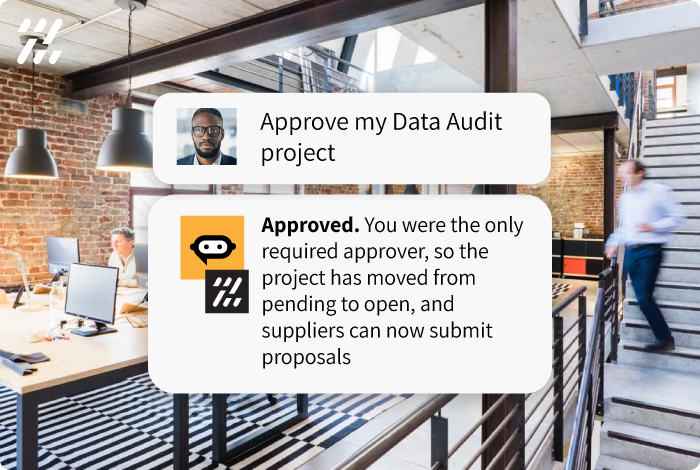
“Show me the project waiting for my approval. Summarise scope, budget, timeline and milestones in a few lines, then approve it.”
Alex gets a short summary of a £180,000 discovery project, its 12-week timeline and three milestones, and approves it so it opens for proposals. Then a draft project is submitted for approval, and the assistant confirms who needs to sign it off.
Your assistant works inside Zivio as you, with the same rules you already follow.
You approve every change
The assistant asks before it writes anything. Read only access means it can look but never change.
Same workflow, same audit trail
Changes go through the same approvals, validation and notifications as the web app, and are logged against you and the connected application.
Security and Compatibility
Frequently Asked Questions
Need a bit more information before booking a demo? Here are the answers to the questions most of our customers ask.
-
The assistant only sees what it asks for, under your permissions, one request at a time. That’s the same information the Zivio web page would show you. Nothing is bulk-exported or indexed. You choose which AI vendor you trust, Zivio sends nothing anywhere itself, and an admin can switch the connection off for your organisation.
-
No. Every request is checked as you, with the same permissions as the web app plus the access level you chose when connecting. Changes go through the same workflow, validation and notifications, and appear in the audit trail against your name and the application.
-
Admins can see every connected AI application, which vendor it is and when it last made a request, and can revoke access in one click. The feature can be switched off for your whole organisation. When connecting an individual agent you can choose to restrict it to certain data types, for example not giving it any finance update permissions, to further control what it can do.
-
Every figure it quotes comes straight from Zivio, with ids, amounts and dates cited. When it changes something, it reports the result Zivio confirms back to you. And the web app is always one refresh away if you want to check.
-
Claude and ChatGPT today, plus any assistant that supports the open MCP standard, including Copilot and Cursor.
-
Connecting an AI assistant is part of the Zivio platform. You use your own assistant subscription.